Login and Logout Procedure
Logging In to the Mobile App
You can log in to the mobile application using one of the following login flows, depending on how your organization has configured authentication:
- Standard Login (No MFA)
- Standard Login with MFA
- SSO-Based Login (Azure Entra ID)
- Forgot Password (applies to both standard login flows)
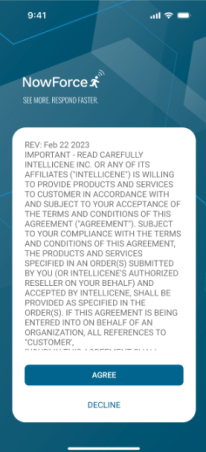
After authentication is completed, the End User License Agreement (EULA) appears. You must accept the EULA before entering the app.
1. Standard Login (No SSO, No MFA)
- On the Home screen of your mobile device, tap the app icon.
- The Sign In screen appears.
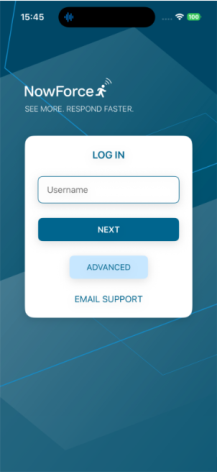
- Enter your Username and tap Next.
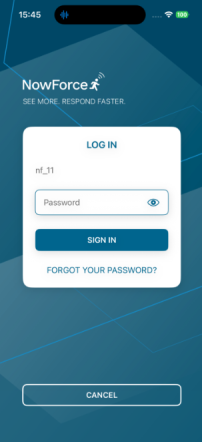
- On the Password screen, enter your password and tap Sign In
- The EULA screen appears. Review the agreement and tap Accept.
- The mobile app Home screen appears.
2. Standard Login with MFA (No SSO, With MFA)
- On the Home screen of your mobile device, tap the app icon.
- The Sign In screen appears.
- Enter your Username and Password.
- Tap Sign In.
- The MFA Verification screen appears, prompting you to enter a one-time code sent to your email, SMS, or authenticator app (depending on your organization’s configuration).
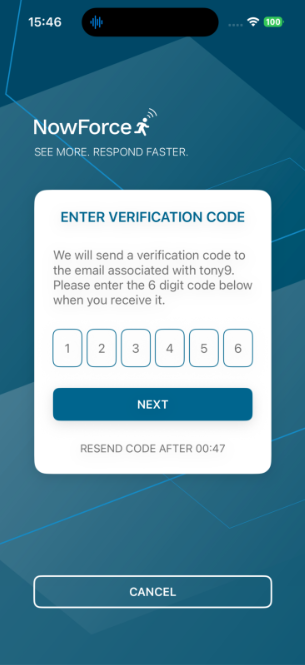
- Enter the MFA code and tap Verify.
- The EULA screen appears. Tap Accept.
- The mobile app Home screen appears.
Forgot Password Flow (Applies to Both Standard Login Types)
If you forget your password, you can reset it directly from the Sign In screen.
- On the Sign In screen, tap Forgot Password?
- A code is sent to the email address associated with your account.
- On the verification screen, enter the code you received.
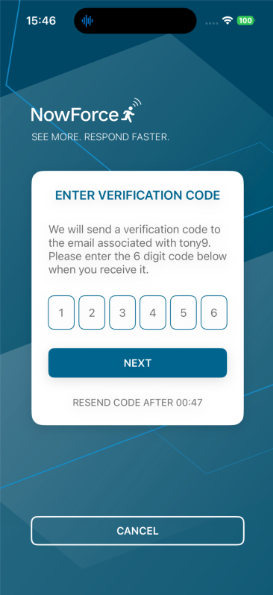
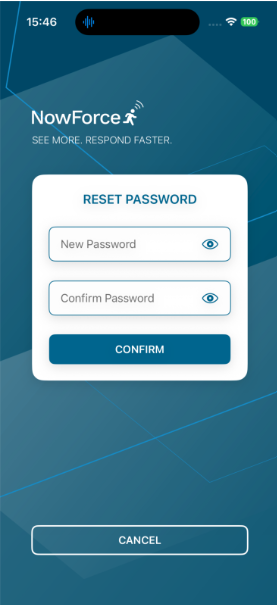
- Enter your new password and tap Confirm.
3. SSO-Based Login
If your organization uses Single Sign-On (SSO) based on Azure Entra ID, the login experience is handled by your organization’s identity provider.
- On the Home screen of your mobile device, tap the app icon.
- The Sign In screen appears.
- Enter your NF username in the Username box and tap Next.
- The identity provider login page opens. Currently, only Microsoft Azure Entra ID is supported.
- Enter your authentication details as prompted.
- Confirm Sign In for the app when prompted.
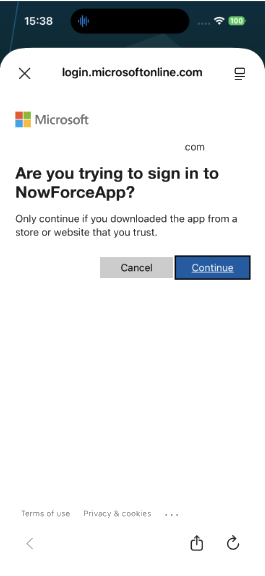
- Sign in using your organizational username and password.
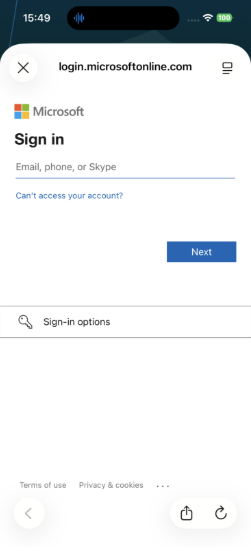
- Complete any required MFA steps from your identity provider (if applicable).
- After authentication completes, you are redirected back to the app.
- The EULA screen appears. Tap Accept.
- The mobile app Home screen appears.
Logging Out of the Mobile App
Warning: When you log out, you will no longer receive alerts, notifications, or messages. Additionally, all information in the app related to incidents, alerts, or messages is cleared from the device.
- On the Home screen, tap the Menu icon.
- On the Menu screen, tap Logout at the bottom.
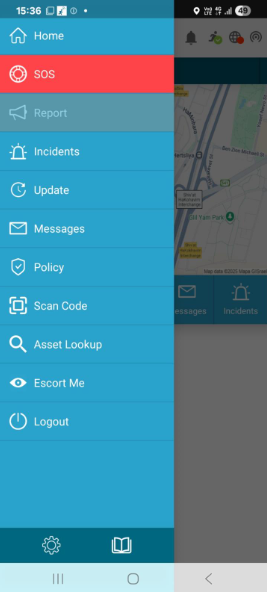
- When prompted, confirm the logout by tapping OK.
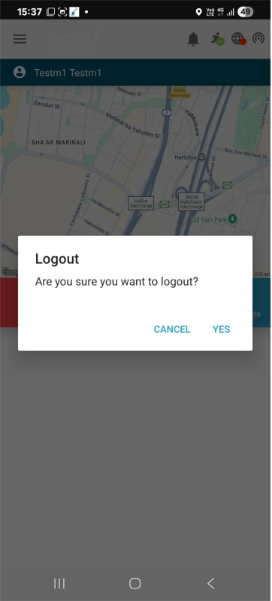
- You are logged out, and all locally stored incident, alert, and message data is erased from the device.


